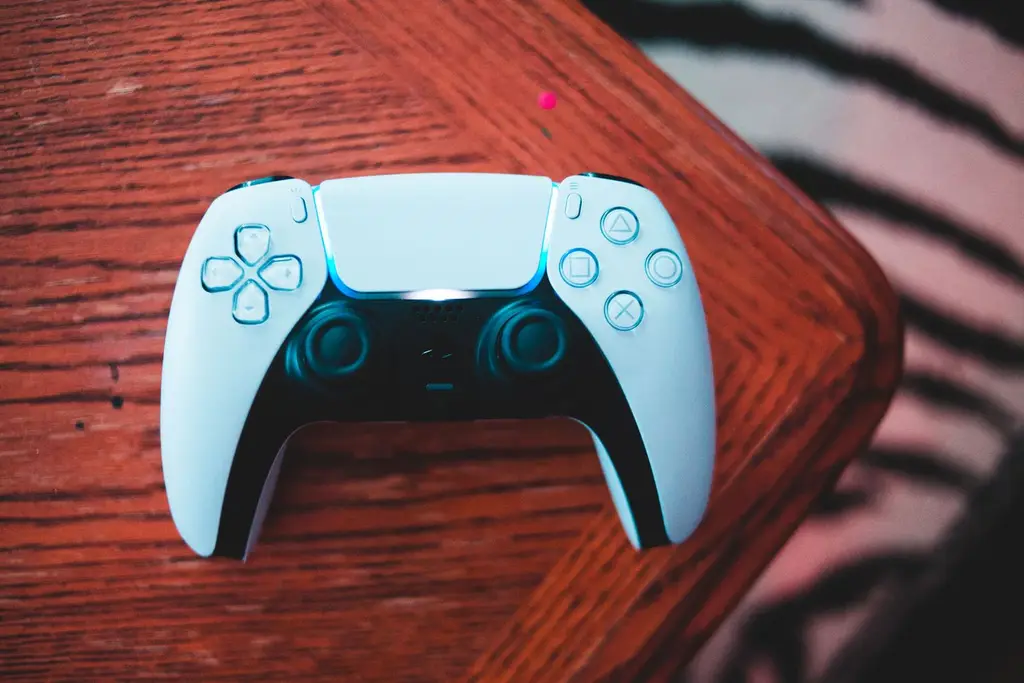
The accessories around your console, such as charging docks, storage and cable routing, have an outsized effect on how a setup feels day to day. This hub names specific accessories from the makers' own pages, explains what to check for each console, and links every accessory guide.
Shop on Amazon
Sponsored
As an Amazon Associate, GameGearLab earns from qualifying purchases. Affiliate disclosure. Images are generic illustrations, not the exact listing.
Console Accessories
A general starting point for browsing console and setup accessories, covering stands, hubs, and cable routing tools.
Buy for the console you have and the problem you want to solve. Do not buy a bundle of small extras you will not use. A charging dock, enough storage and a way to tidy your cables are the three that most setups benefit from.
Check compatibility on the maker's page. Console accessories are often locked to one platform or generation, and a card or dock for one model will not work on another.
Charging and power
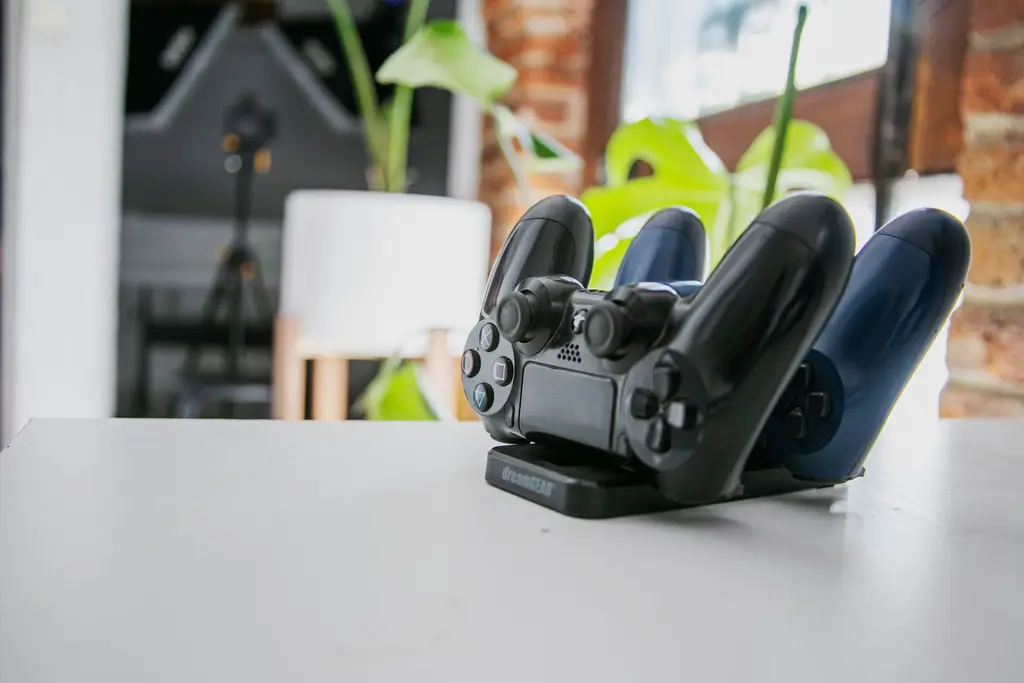
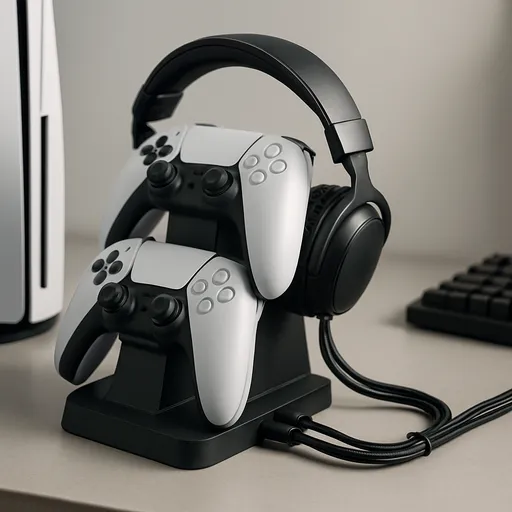
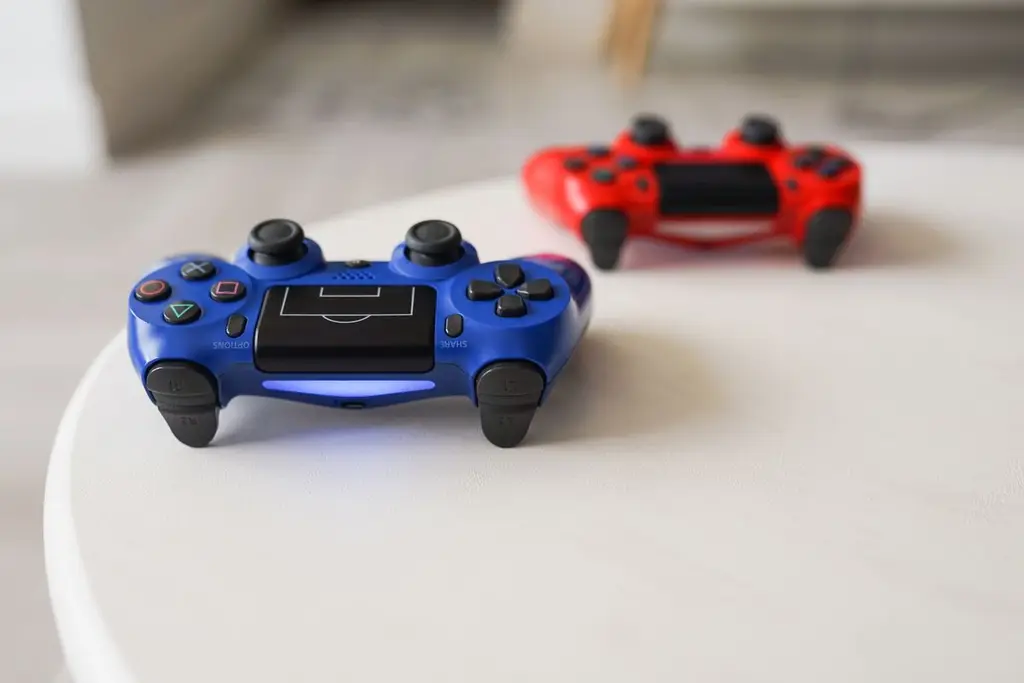
A dock keeps controllers charged and off the floor. Sony lists a charging station for two DualSense or DualSense Edge controllers, with about 3 hours from empty. Our charging dock guide covers what to check. For battery life see how long controller batteries last.
Storage
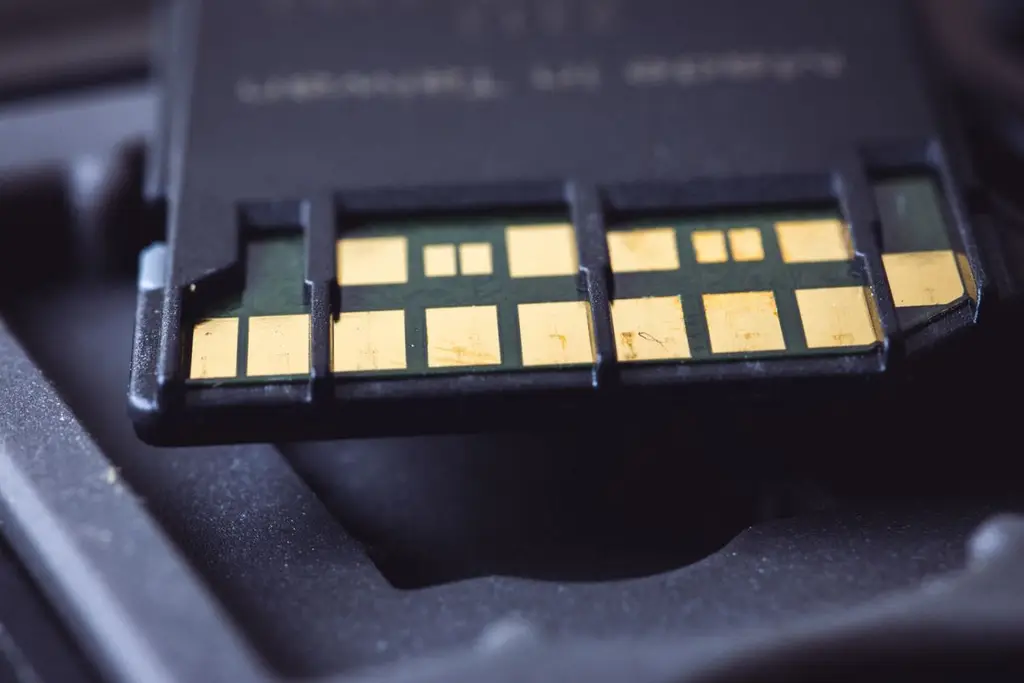
Games are large, and console storage fills quickly. Xbox Series X|S use a plug-in expansion card, and Seagate's cards match the internal SSD speed. The original Switch uses a microSD card, but Nintendo says Switch 2 is only compatible with microSD Express cards, so an old card will not carry over. Read the platform holder's compatibility page before you buy.
Audio
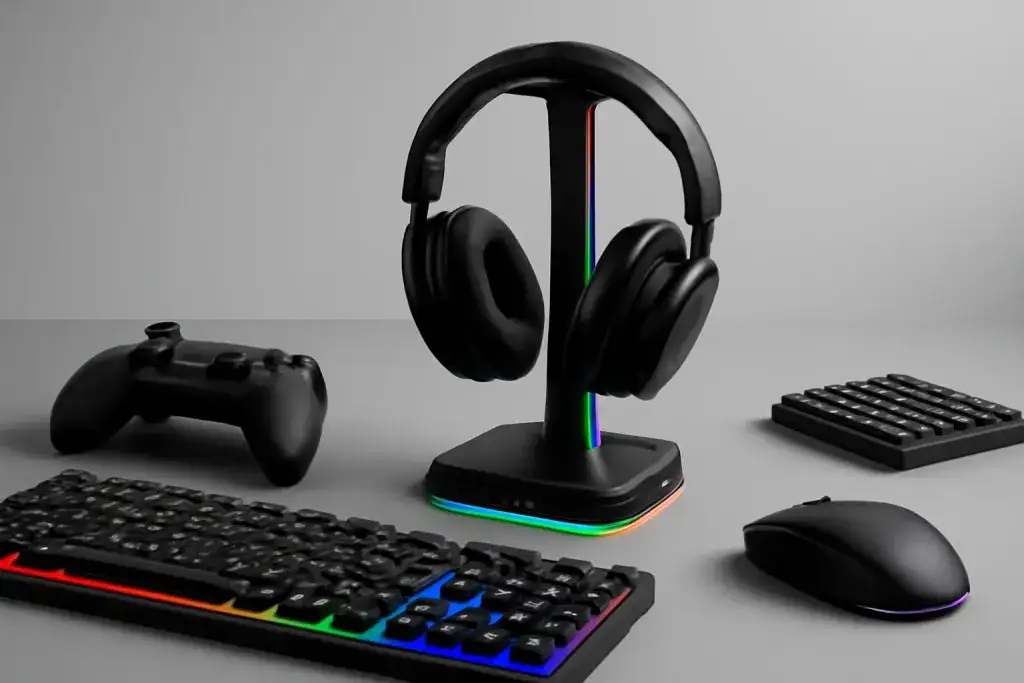
A headset on a console needs a USB dongle, a vendor adapter or a cable; Bluetooth does not carry game audio on PS5. See our PS5 headset picks, and keep the headset tidy with a headset stand.
Cables and a tidy setup
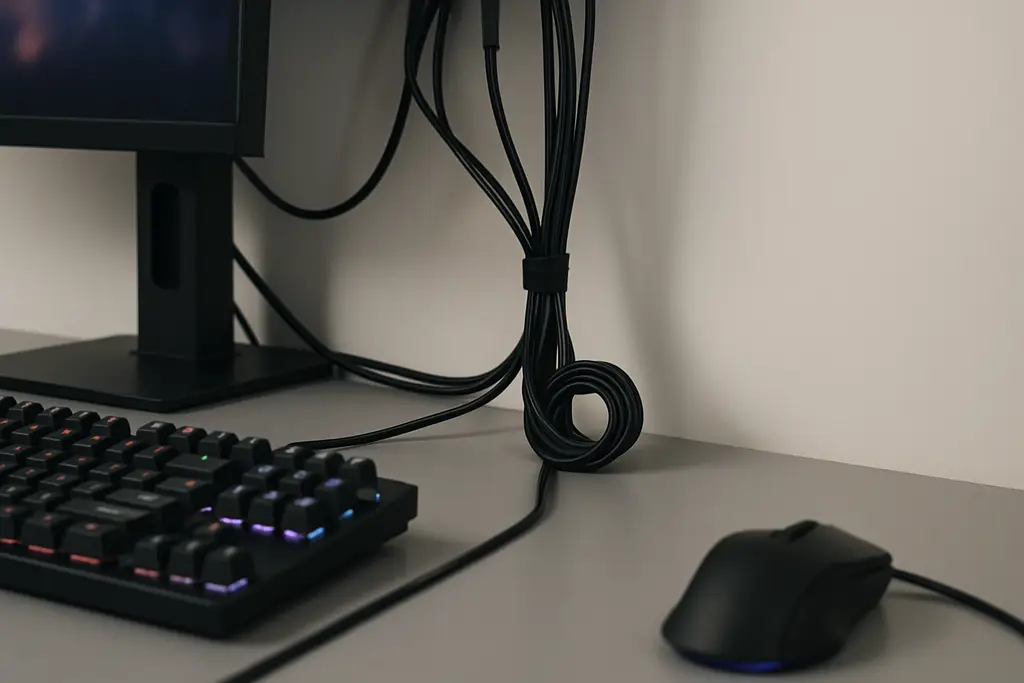
Plan power first, then route cables along the back and under the desk. Our cable management guide gives a plan. A tidy setup also makes it easier to find a loose cable when something stops working.
More console guides
We are adding platform guides for PS5, Xbox and Switch accessories. Check back, or browse the full guides index.
Accessory terms you will see on listings
PlayStation Link
Sony's wireless link used by the PULSE Elite and PULSE Explore.
microSD Express
The card standard Nintendo says Switch 2 requires.
Expansion card
Plug-in storage for Xbox Series X|S that matches the internal SSD.
Charging station
A dock that charges controllers without using the console's ports.
Passthrough
A device that sits between the console and the TV and passes the signal through.
HDMI 2.1
The cable and port standard needed for 4K at 120 Hz.
Ultra High Speed cable
The cable class for HDMI 2.1 bandwidth.
Licensed accessory
One approved by the platform holder, which some consoles require.
Mistakes to avoid
The most expensive mistake is buying storage for the wrong console. A microSD card for the original Switch will not work on Switch 2, and an Xbox expansion card does not fit a PlayStation. Check compatibility first.
Another is trusting a "universal" label. Dongles and docks are often locked to one platform. And do not buy a pile of tidy-up gadgets before you plan the cable routes.
Who should buy what
PS5 owners with two controllers may like a charging dock. Xbox Series X|S owners running out of space can look at an expansion card. Original Switch owners can use a licensed microSDXC card, and Switch 2 owners need microSD Express. Anyone with a messy desk should start with cable management.
Care and setup
Give the console room to breathe, keep cables away from vents, and use a surge protector. Label power bricks so you can find them. Update console firmware and accessory firmware when prompted.
A buying checklist
Console and model. Check the exact model before you buy anything.
Storage. Know which card type your console needs.
Charging. Decide how many controllers you charge at once.
Audio. Pick a headset connection your console supports.
Cables. Measure runs and count sockets.
Returns. Check the policy, since compatibility mistakes are the most common return reason.
Quick troubleshooting
If a card is not recognised, check the console's storage settings and the card's type. If a dock does not charge, reseat the controller and check the power brick. If a headset has no audio, check the console's audio output setting and the dongle position. If cables are tangled, label each end before you re-route.
Spending in the right order
Spend first on whatever limits play: storage if the drive is full, a headset if you cannot chat, a dock if batteries run out mid-game. Leave cosmetic add-ons until last. Keep receipts and model numbers together, since accessories often have separate return windows from the console.
How we choose in this category
We build quick picks from the makers' own spec pages and platform holders' support pages, looking at console compatibility, the connection used and the makers stated ratings. Compatibility comes first because the wrong accessory simply will not work. We do not run lab tests, we do not quote prices, and we leave out any spec we cannot confirm on the maker's page.
Specs change between versions, so confirm the details on the current listing for your region before you buy. Our about page explains our editorial method, and our affiliate disclosure explains how the site earns.
Where to go next
Use the quick picks to shortlist, read the guide linked to each one for the comparison, and use the free tools to check your setup. If you are still not sure, start with the guide that matches your platform. Browse the free tools or the full guides index for anything not listed here.
PS5 notes
PS5 headsets need a USB dongle, the PlayStation Link adapter or a cable for game audio; Bluetooth is not sent. Sony's DualSense charging station docks two controllers. Check the console's own support pages for its storage expansion options before you buy a drive.
For monitors with a charging hook and HDMI 2.1, see our PS5 monitor picks.
Xbox notes
Xbox accessories generally need to be licensed. A headset or earbuds for PlayStation will not work on Xbox, and some makers, like SteelSeries with the Arctis GameBuds, sell a separate Xbox model. Storage for Xbox Series X|S is a plug-in expansion card that matches the internal SSD, which Microsoft says keeps performance the same.
Switch notes
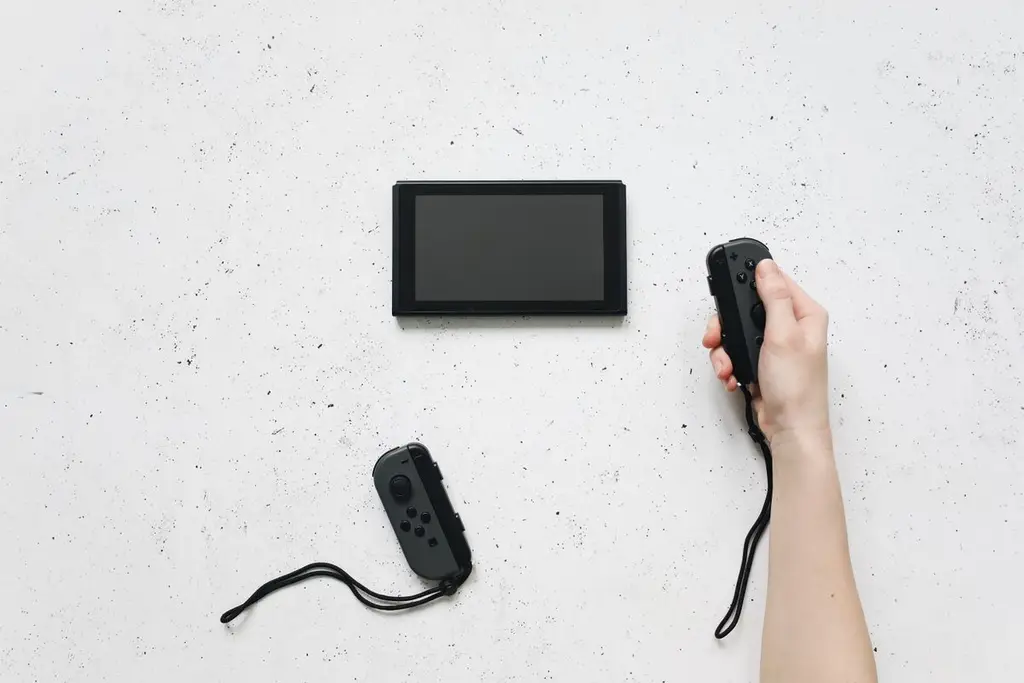
The original Switch, OLED and Lite use a microSD card. Nintendo says Switch 2 only accepts microSD Express, so an older card will not carry over. A Switch can use a 3.5 mm headset, a USB dongle in the dock, or Bluetooth audio with extra delay. Our Switch headset guide goes through each option.
Questions before you check out
Ask yourself which console and exact model the accessory is for, whether it uses a dongle or a cable, what it needs to plug into, and how returns work if it is the wrong one. Check the platform holder's compatibility page for storage, because the rules differ by generation. Keep the box and receipt until you have tried it.
A short test on day one catches most problems while a return is still simple.
All Console Accessories guides
Every console accessories guide on the site, in one place:
Best PS5 Accessories: Four Picks Worth Buying: The best PS5 accessories: four named picks, from a charging station to extra storage, with a comparison table from Sony's pages and what to check first.
Best Nintendo Switch Accessories: Four Picks: The best Nintendo Switch accessories: four named picks, from a Pro Controller to a microSD card, with a table and what to check on Switch vs Switch 2.
Best microSD Card for Switch 2: Express Picks: The best microSD card for Switch 2: why you need microSD Express, three named picks, a table of what fits which Switch, and a note on the original Switch.
Browse Console Accessories on Amazon
A pick chosen for practicality in a typical console or desk setup.
The best microSD card for Switch 2: why you need microSD Express, three named picks, a table of what fits which Switch, and a note on the original Switch.
The best PS5 accessories: four named picks, from a charging station to extra storage, with a comparison table from Sony's pages and what to check first.