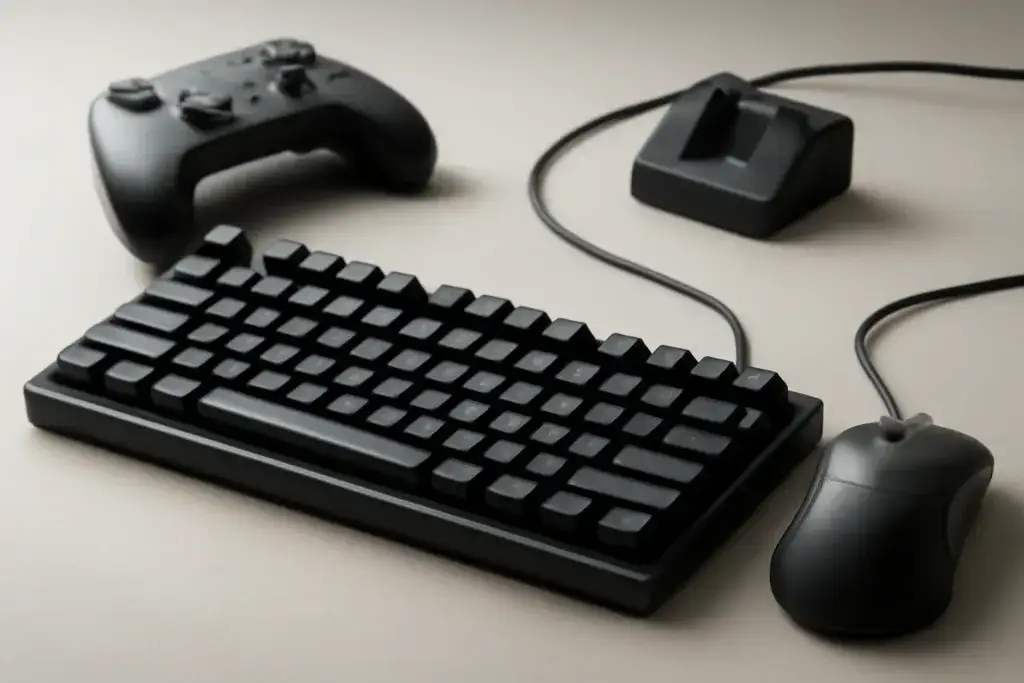
Choosing a gaming keyboard means balancing switch feel, layout size, connection and build. This hub names specific keyboards from the makers' own pages, explains how to choose, and links every keyboard guide, from switch types to fixing mushy keys.
Shop on Amazon
Sponsored
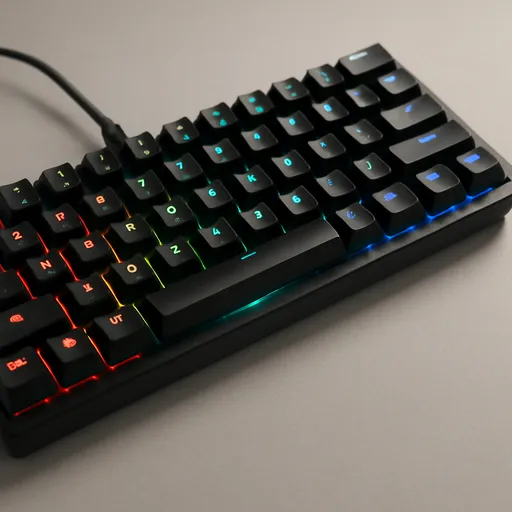
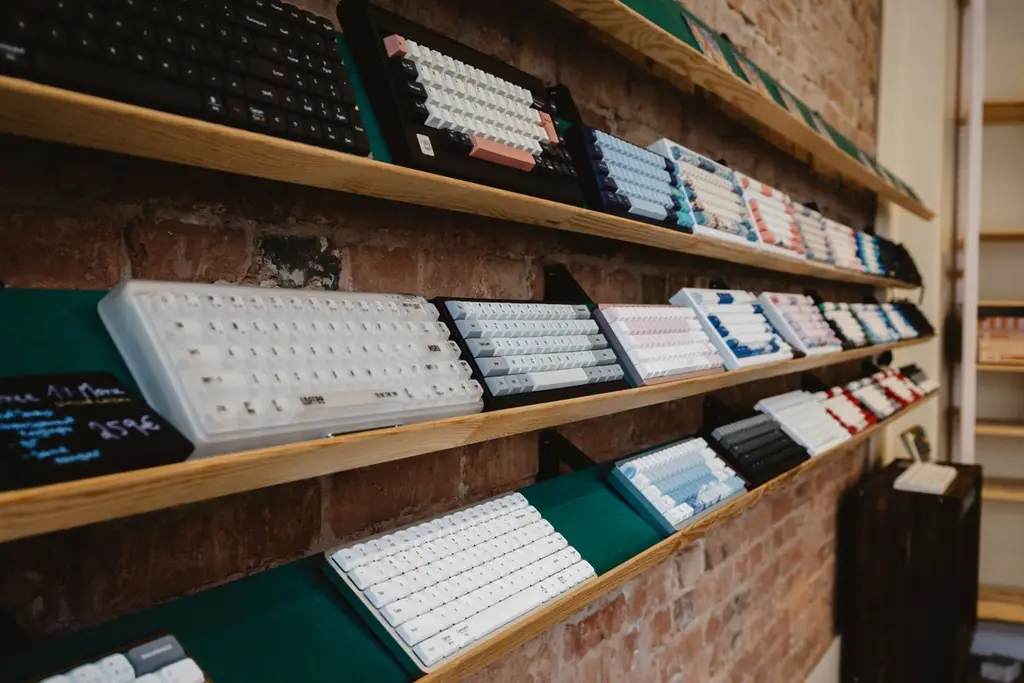
As an Amazon Associate, GameGearLab earns from qualifying purchases. Affiliate disclosure. Images are generic illustrations, not the exact listing.
Gaming Keyboards
A general starting point for browsing mechanical gaming keyboards, covering common layouts and switch styles.
Named keyboards we chose from the makers' own pages. We did not run lab tests; weights and battery numbers are the makers' figures. Links are affiliate links.
Low-profile TKL
Logitech G515 LIGHTSPEED TKL
Low-profile GL switches in tactile or linear, tri-mode connection. Linear vs tactile.
Low-profile GL switches in tactile or linear, 1.3 mm actuation point
Pick the layout, then the switch feel, then the connection and extras. Layout decides desk space and how far your mouse can swing. Switch feel decides how the keyboard sounds and responds. Connection and extras, like hot-swap sockets or remapping software, decide how long you will enjoy it.
New to mechanical boards? Read our beginners guide first. It covers the terms you will see on listings.
Switch types: linear, tactile and clicky
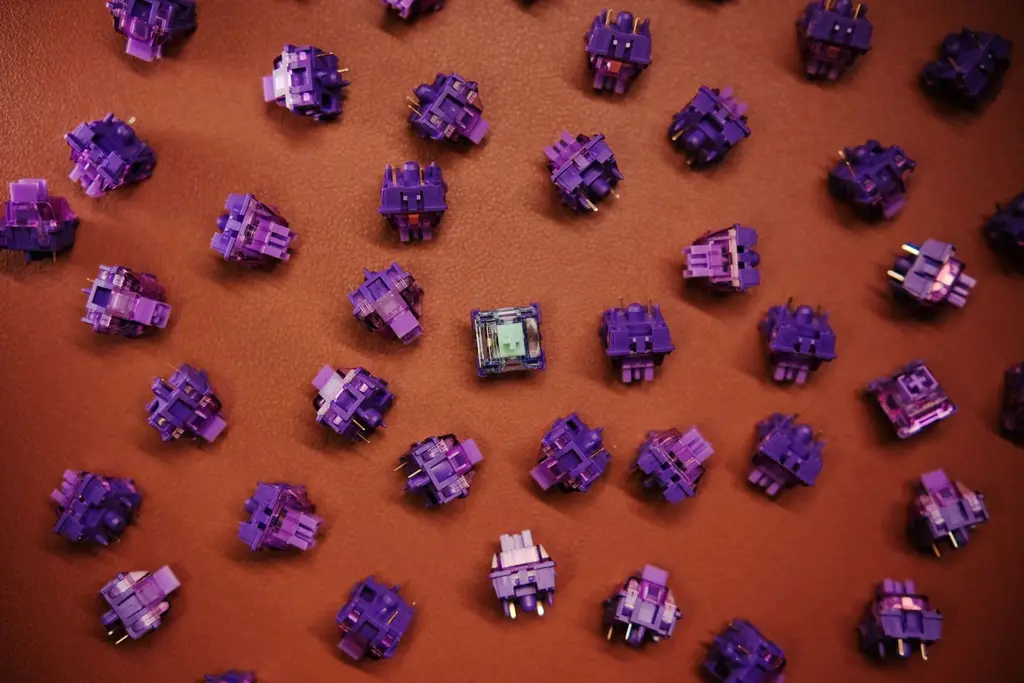
Linear switches press smoothly. Tactile ones have a bump. Clicky ones add a sound. Neither is faster; it is a matter of feel. Our linear vs tactile guide explains which suits which player, and the picks above include boards that let you choose.
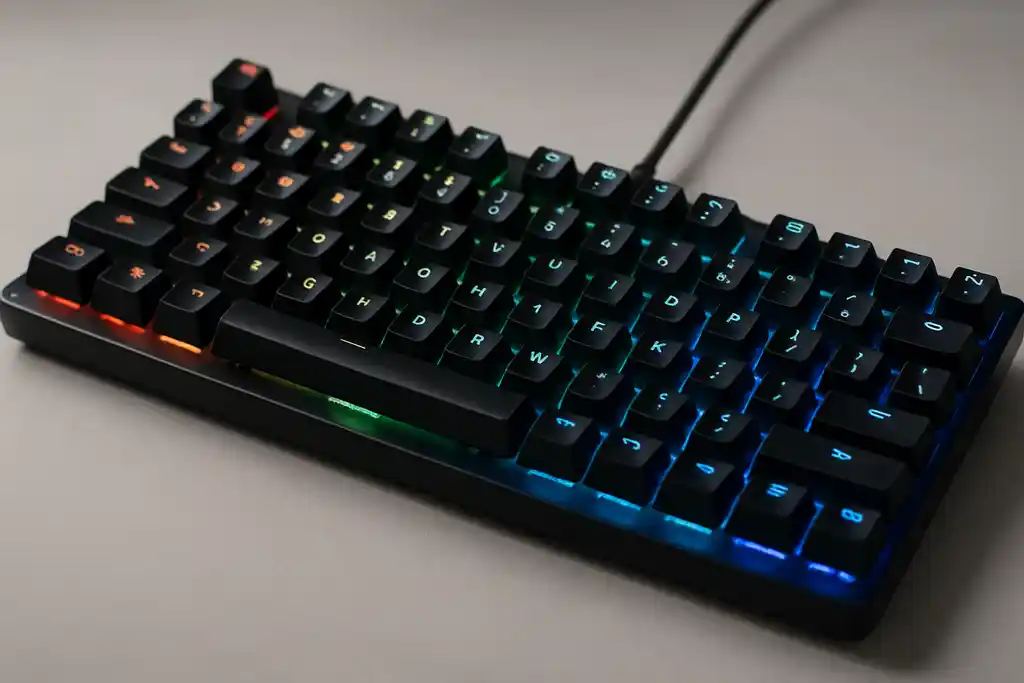
If a key ever feels soft or inconsistent, see why keys feel mushy. Test a suspect key with the free Keyboard Tester, which lights keys as they register.
How the three switch types feel. Force against travel, drawn qualitatively. Linear is smooth, tactile has a bump at the actuation point, clicky adds a sharp click.
Layout and size
A tenkeyless board gives your mouse hand more room, which many gamers prefer. 75% and 60% boards save more space but remove keys you may use. Our 60% keyboard guide lists what you give up and who should skip it.
Ghosting, rollover and hot-swap
Ghosting is when pressing several keys at once fails to register all of them. Most gaming keyboards handle it, but the details differ; see whether you need anti-ghosting. The Keyboard Tester shows how many keys register at once.
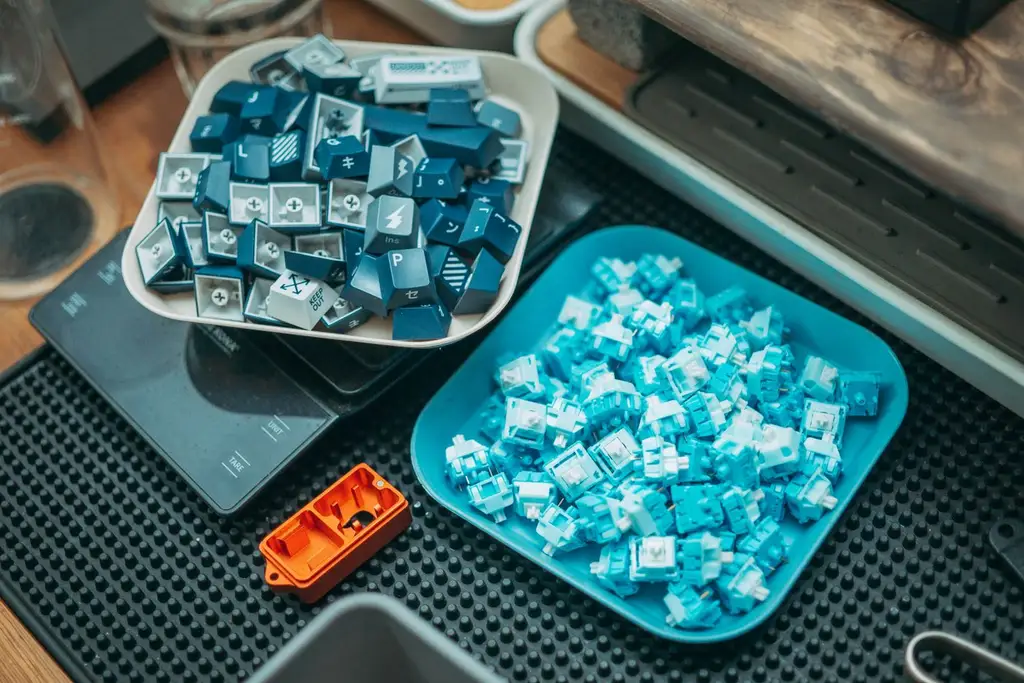
Hot-swap sockets let you change switches without soldering. They make a board easier to repair and customise, and our hot-swap guide explains what to check.
Care and customising
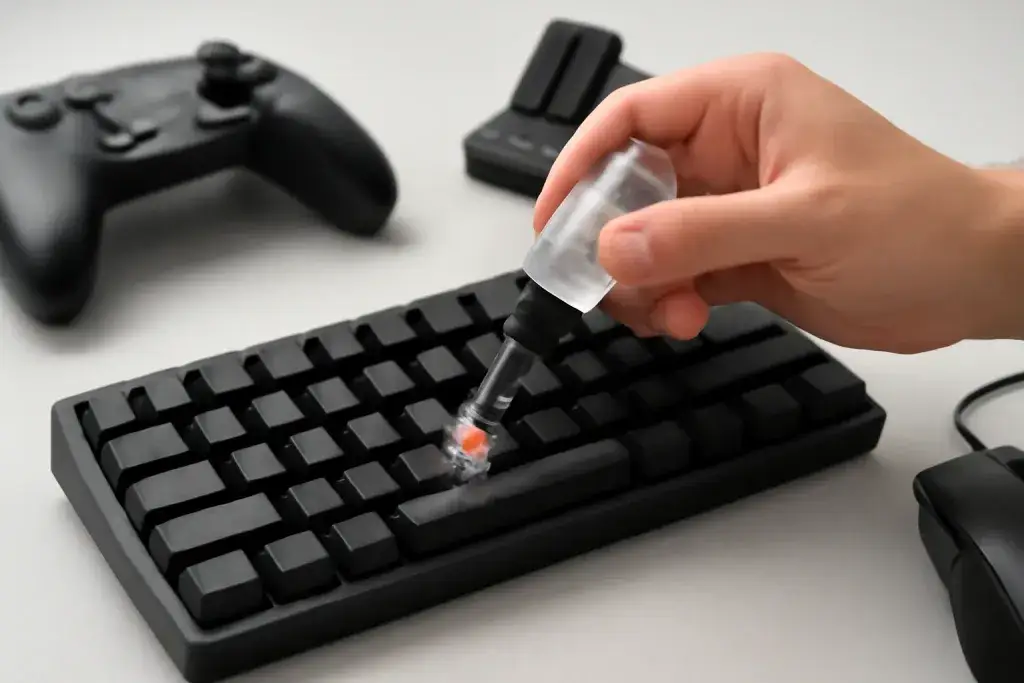
If you want a different feel, lubing switches can change it; read how to lubricate switches safely before you start. Keep the board clean and use a cover when you are not using it.
Keyboard terms you will see on listings
Switch
The mechanism under each key. Linear, tactile and clicky are the three common feels.
Actuation point
How far you press before the key registers. Logitech lists 1.3 mm on its low-profile G515 switches.
Hot-swap
Sockets that let you swap switches without soldering.
Rollover / NKRO
How many keys can register together. Most gaming boards handle many at once.
Polling rate
How often the keyboard reports to the PC. 1,000 Hz is common.
Stabilizer
The mechanism that keeps wide keys such as Space level.
QMK / VIA
Open firmware and a remapping app used by some boards, such as Keychron's.
Keycap material
PBT tends to resist shine; ABS is common. Both vary by board.
Mistakes to avoid
Do not choose a switch type on reputation. Feel is personal. Do not pay extra for a layout you will not use: a 60% board removes arrow keys and the function row, which some games rely on. And do not assume a metal case is a better keyboard. It is heavier and sounds different, which some people like and others do not.
Also check the wireless details. Bluetooth modes often poll slower than 2.4 GHz or wired, as Keychron lists 90 Hz on Bluetooth for its Max boards. Use the dongle or cable for games.
Who should buy what
First-time mechanical buyers should start with our beginners guide and a tenkeyless board. Players who like to experiment should choose a hot-swap board, like the Keychron Q1 Max or V1 Max. Desk-space-limited players can look at 75% or 60% layouts.
People who type all day may like tactile switches. Players who share a room should avoid clicky switches. Low-profile fans can compare the G515 TKL, which has a short travel.
Care and setup
Keep the board clean with a soft brush and, if you remove keycaps, a keycap puller. Do not pour cleaning liquid in. Update firmware from the maker's app. If you plan to lubricate switches, read our guide first, because it is easy to over-do it.
If a key stops registering, test it with the Keyboard Tester before you assume the switch has failed.
A buying checklist
Layout. Full size, tenkeyless, 75% or 60%? Count the keys you actually use.
Switch feel. Try a switch tester or pick a board that sells several types.
Connection. Wired is simplest. For wireless, check for a 2.4 GHz dongle and the polling rate in each mode.
Customising. Hot-swap sockets and remapping software extend a board's life.
Weight and build. A metal case, like the 1,724 g Q1 Max, stays put but is heavy to carry.
Returns. Typing feel is personal, so buy with a return window.
Quick troubleshooting
If a key does not register, test it in the Keyboard Tester and try another USB port. If a key repeats, it may be chatter; the tester flags a key that repeats within 30 ms. If several keys fail at once, check for ghosting, then update firmware. If keys feel soft, read our mushy keys guide for the cause-and-fix table. If wireless input lags, move the dongle closer on a short extension and switch from Bluetooth to 2.4 GHz.
When all else fails, try the keyboard on another computer to see whether the board or the PC is at fault.
How we choose in this category
We build quick picks from the makers' own spec pages and platform holders' support pages, looking at layout, switch options, connection modes and whether the switches can be changed. Layout and switch feel come first because they decide whether you will like using it every day. We do not run lab tests, we do not quote prices, and we leave out any spec we cannot confirm on the maker's page.
Specs change between versions, so confirm the details on the current listing for your region before you buy. Our about page explains our editorial method, and our affiliate disclosure explains how the site earns.
Where to go next
Use the quick picks to shortlist, read the guide linked to each one for the comparison, and use the free tools to check your setup. If you are still not sure, start with the guide that matches your platform. Browse the free tools or the full guides index for anything not listed here.
All Gaming Keyboards guides
Every gaming keyboards guide on the site, in one place:
Do Gaming Keyboards Need Anti-Ghosting?: Do gaming keyboards need anti-ghosting? Learn what anti ghosting keyboard explained means, who needs it, and what to check before buying.
Mechanical Gaming Keyboard Guide for Beginners: A beginner-friendly guide to mechanical gaming keyboards: switch types, layout sizes, hot-swappable boards, and what actually matters before you buy.
Should Beginners Buy a 60% Keyboard?: A practical guide to whether a 60 percent keyboard suits beginners, with real trade-offs, setup tips, and buying advice.
Why Do My Keyboard Keys Feel Mushy?: Why do keyboard keys feel mushy? Learn what causes it, what to check first, and how to restore a firmer typing feel without guesswork.
Best Budget Mechanical Keyboard: Four Picks: The best budget mechanical keyboard: four named wired TKL picks, a comparison table from maker specs, and what to check on switches, layout and hot-swap.
Browse Gaming Keyboards on Amazon
A keyboard pick chosen for build quality and a widely-liked switch feel.
The best budget mechanical keyboard: four named wired TKL picks, a comparison table from maker specs, and what to check on switches, layout and hot-swap.