How we chose
We chose four external capture cards from the makers' own pages. We did not test them. External USB cards are the simplest route for a console and a laptop, so we left out internal PCIe cards.
Passthrough versus capture
Two numbers matter, and they are not the same. Passthrough is the signal sent on to your TV or monitor; capture is the quality of the copy sent to the PC. A card can pass 4K through and record at a lower resolution. Match the passthrough to your display and the capture to what you want to stream.
USB and your PC
Most cards need a USB 3 port, and the fastest ones need a port that can carry the data. Plug into a port directly on the PC, not a hub. Check the listing for supported consoles and for any extra software.
Delay and gameplay
Play on the passthrough display, not on the preview in the capture software. The preview can lag slightly behind, which is why a card with passthrough matters for fast games. For voice, see our Mic Test and headsets with a detachable mic.
Shop on Amazon
SponsoredAs an Amazon Associate, GameGearLab earns from qualifying purchases. Affiliate disclosure. Images are generic illustrations, not the exact listing.
-
Console Accessories
A general starting point for browsing console and setup accessories, covering stands, hubs, and cable routing tools.
Browse console accessories on Amazon: Console Accessories on Amazon -
Gaming Mice
A general starting point for browsing gaming mice, covering common shapes and grip-friendly designs.
Check current mouse options on Amazon: Gaming Mice on Amazon -
Gaming Monitors
A general starting point for browsing gaming monitors, covering common refresh-rate and resolution tiers.
Browse gaming monitors on Amazon: Gaming Monitors on Amazon -
Gaming Chairs
A general starting point for browsing gaming chairs, covering common adjustability features to look for.
See gaming chair options on Amazon: Gaming Chairs on Amazon -
Gaming PCs
A general starting point for browsing gaming PCs and components, covering common configuration tiers.
Browse gaming PCs on Amazon: Gaming PCs on Amazon -
Gaming Headsets
A general starting point for browsing gaming headsets, covering wired and wireless options across consoles and PC.
Browse gaming headsets on Amazon: Gaming Headsets on Amazon -
Controllers
A general starting point for browsing controllers, covering standard and alternative layouts for PC and consoles.
See controller options on Amazon: Controllers on Amazon -
Gaming Keyboards
A general starting point for browsing mechanical gaming keyboards, covering common layouts and switch styles.
Browse gaming keyboards on Amazon: Gaming Keyboards on Amazon
Mistakes to avoid
The first mistake is buying 4K capture for a stream that will go out at 1080p. Most platforms and most viewers cap there, so the extra capture quality is wasted. The second is plugging the card into a hub or a USB 2.0 port, which cuts the data it can carry and shows up as dropped frames. The third is forgetting the consoles' own settings: some consoles disable the video output on certain screens or modes, so read the console's support page for capture.
Software and setup
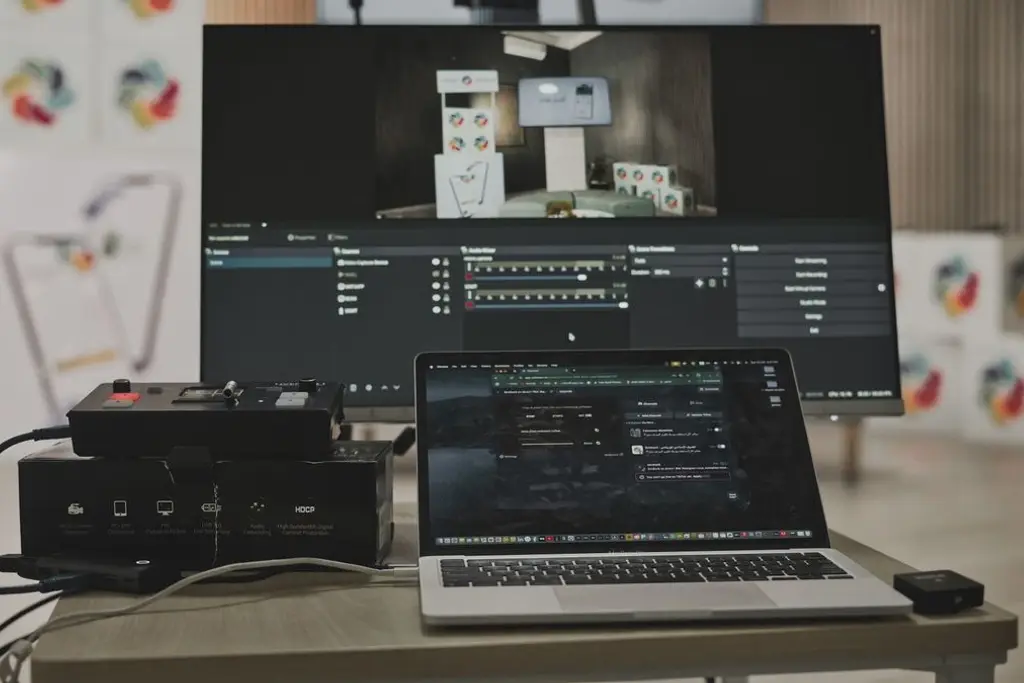
Most cards work with free capture programs such as OBS. Add the card as a video source, set the resolution and frame rate to match what the console outputs, and use the passthrough for gameplay. If the preview looks wrong, check the console's HDR and resolution settings first, since capture cards often handle SDR 1080p most reliably.
Quick checklist
- Check that your console's video output and resolution are supported on the card's listing, and that your PC has a suitable USB port.
- Decide whether you need 4K passthrough for your TV, or only 1080p capture for the stream.
- Buy an extra HDMI cable that is rated for the mode you want, since a cable is a common cause of a black picture.
- Test a short recording before your first live stream, to confirm that picture and sound stay in sync.