How we chose
We chose five monitors whose makers list HDMI 2.1 and a console-friendly spec. We did not test them. The notes below come from the makers' own pages and from Sony's guidance on PS5 display modes.
What a PS5 monitor needs
Sony lists 1440p at 60 Hz as the baseline, and 120 Hz needs an HDMI 2.1 display. VRR (variable refresh rate) works on PS5 over HDMI 2.1 when the game supports it, including at 1440p since a 2023 system update. A 4K monitor receives 4K signals, and some games can render at higher resolution and scale down.
So the key spec is the HDMI version on the port you use. A monitor can list a high refresh rate over DisplayPort that the console cannot use. Check the listing for the refresh rate at the HDMI port, not the headline.
4K or 1440p
4K is sharper and suits a bigger screen or sitting close. 1440p keeps frame rates higher on both console and PC, and the picture is still crisp at 27 inches. On PS5, many players choose 1440p 120 Hz for responsive play, or 4K 60 for single-player games.
Some 4K monitors limit what the console can send. Gigabyte says the M28U runs PS5 and Xbox at 4K 120 Hz with 4:2:0 chroma, and LG lists 4K 120 Hz with VRR over HDMI 2.1 on the 27GP950-B.
Shop on Amazon
SponsoredAs an Amazon Associate, GameGearLab earns from qualifying purchases. Affiliate disclosure. Images are generic illustrations, not the exact listing.
-
Gaming Monitors
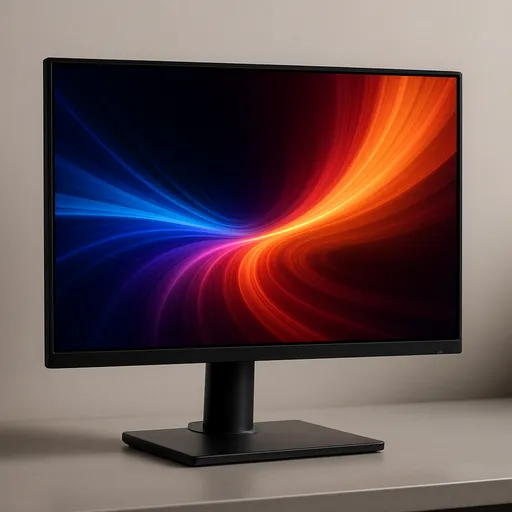
A general starting point for browsing gaming monitors, covering common refresh-rate and resolution tiers.
Browse gaming monitors on Amazon: Gaming Monitors on Amazon -
Gaming PCs
A general starting point for browsing gaming PCs and components, covering common configuration tiers.
Browse gaming PCs on Amazon: Gaming PCs on Amazon -
Console Accessories
A general starting point for browsing console and setup accessories, covering stands, hubs, and cable routing tools.
Browse console accessories on Amazon: Console Accessories on Amazon -
Gaming Headsets
A general starting point for browsing gaming headsets, covering wired and wireless options across consoles and PC.
Browse gaming headsets on Amazon: Gaming Headsets on Amazon -
Controllers
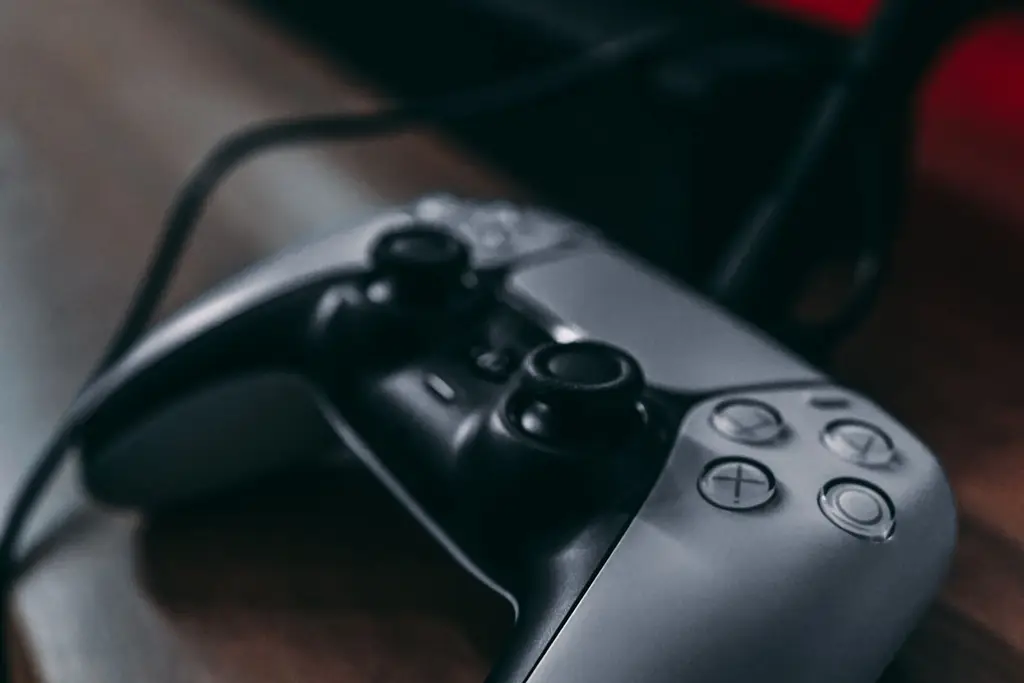
A general starting point for browsing controllers, covering standard and alternative layouts for PC and consoles.
See controller options on Amazon: Controllers on Amazon -
Gaming Keyboards
A general starting point for browsing mechanical gaming keyboards, covering common layouts and switch styles.
Browse gaming keyboards on Amazon: Gaming Keyboards on Amazon -
Gaming Mice
A general starting point for browsing gaming mice, covering common shapes and grip-friendly designs.
Check current mouse options on Amazon: Gaming Mice on Amazon -
Gaming Chairs
A general starting point for browsing gaming chairs, covering common adjustability features to look for.
See gaming chair options on Amazon: Gaming Chairs on Amazon
Extras worth having
Look for a DualSense charging hook (Sony's monitor has one), a headphone jack, and a stand that adjusts. HDR support varies by panel; DisplayHDR 400 is an entry level, and brighter tiers cost more. Built-in KVM, like on the M28U, helps if you share the monitor with a PC.
PS5 settings to check
- Connect the console to the monitor's HDMI 2.1 port.
- In the console's screen and video settings, check the video output information shows the resolution and refresh rate you expect.
- Turn on VRR, and turn on the monitor's own adaptive sync or HDMI VRR setting.
- Enable 120 Hz output in supported games, and pick a resolution mode if the game offers one.
- Use the cable that came with the monitor or an Ultra High Speed HDMI cable.